Film your class.
Remo writes down the exercises.
No more watching the class back to build the list. Remo listens to the recording and writes down every exercise you taught, in order, with the time it happened, plus equipment, springs, and props.
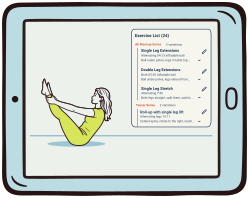
Stop rewatching your class to write down the exercises.
You taught it, filmed it, and edited it. Now you need the list: every exercise, in order, with the time it happened, for the chapters and the description. You know what you taught. Nobody remembers the timestamps. So the video goes on one screen, a blank doc on the other, and you watch your own class back, pausing to type.
You taught it once. You shouldn't have to watch it twice.
Give it the class.
Get the list back.
Each step below plays out on Remo Creator's own screens, with a real 61-minute reformer class, so you can see what comes out before you hand one over.
New class
Up to 90 minutes
Your video stays on your computer
Remo reads the audio out of the file here in your browser and sends only that. The video itself is never uploaded.
Choose a videoGive Remo the class. Keep the video.
Drop in the video you already edited. Remo reads the audio out of it right there in your browser and sends only that, so the video itself never leaves your computer. Leave the title blank and Remo will write one.
Remo Creator's New class page, in a browser window. A title field reads Remo will write one if you leave this empty, above three tabs: Video, Audio and Transcript, with Video selected. A card underneath says Your video stays on your computer, explains that Remo reads the audio out of the file in the browser and never uploads the video, and offers a button, Choose a video. The button is pressed and the page becomes a single card with a spinner that walks through Reading the file, Getting the audio out with a progress bar that fills, Sending the audio to Remo, and Starting the transcript. Under it a note says to keep the tab open until the audio is sent, and that after that you can close it.
The class page while Remo works. The header reads Untitled class. A card headed Working on your class lists three stages: Listening to your class, Finding the exercises, Filling in the details. A spinner sits by the first, then it ticks and the spinner moves to the second, then the third. A line under the list says you can close this page and your class will be waiting in your list. Then the page becomes the finished class: the header now reads Full-Body Jump Board Class, 61 min, Reformer, and a card headed 42 exercises with an Edit control sits above the list.
The finished class page. The card title starts at zero exercises and counts up as the list lands one part at a time: Pelvic Rocks and Typewriter on their own, then Supine Leg Extension Series with its four variations under one heading, Jump Board Foot Mobility Series, Jump Board Single Leg Series, Jump Board Double Leg Series, Straps Arm Series, Iron Cross Series, Side Jump Series on the right and then the left with a Figure Four Stretch after each, Breaststroke Series, Seated Straps Series, Ab Jump Series, Straps Leg Series, and a Happy Pose Stretch to finish. Each row shows its side, the time it happened, Reformer, the prop, coloured dots for the springs, the setup note, and pills for the primary and secondary muscle groups, with an outlined pill for the spinal motion where there is one. The page scrolls to follow the list and ends at 42 exercises. It scrolls back to the top and the Edit control opens a menu: Edit all, Just exercise list & names, Just muscles & spinal motion, Just equipment.
A card headed Where this class focused shows a front and a back view of the body, grey to start. As each part of the class is counted in the matching areas warm from pale peach to deep orange: the abs from the supine leg extensions, the lower legs from the foot mobility work, the fronts of the thighs from the jumping, the arms and chest from the straps, the glutes and outer thighs from the side jumps, the upper back from breaststroke and the seated straps work, and the inner and back thighs from the leg circles and frogs at the end. The page scrolls down past the Share this class card to a section headed Download the heat map, which says A square image of the body map, ready to post. Download image is pressed, its icon spins for a moment, and a download bubble appears in the browser's toolbar reading full-body-jump-board-class-heat-map.png.
A card headed Share this class, with four format buttons: Simple list, With timestamps, With equipment and Markdown. Simple list is selected and a hint reads For Uscreen and Vimeo descriptions, above a preview: the class title and theme, then Pelvic Rocks, Typewriter, Supine Leg Extension Series with its four variations on one line, and so on. The selection moves to With equipment, the hint reads For your own class notes, and every line now carries its apparatus, prop and springs: Pelvic Rocks, Reformer, ball; the series names on their own with each variation indented under them, Three-Part Rocking, Reformer, 2 Blue. The selection moves to With timestamps. The hint becomes For YouTube chapters, a note explains that YouTube needs chapters to start at 0:00, have at least three entries and run at least 10 seconds each, and says there are 18 chapters here. The preview rewrites itself as chapters: 0:00 Intro, 6:21 Pelvic Rocks, 7:00 Typewriter, 9:13 Supine Leg Extension Series, and on to 59:54 Happy Pose Stretch. The Copy list button is pressed and reads Copied.
Twenty classes a month.
Twenty hours back.
One plan, $19 a month, with seven days free. Remo Creator is separate from Remo Pro.
Exercise lists and heat maps for the Pilates classes you post online.
- ✓ Up to 20 classes uploaded a month
- ✓ Input your video, audio, or transcript
- ✓ Every exercise, in order, with timestamps
- ✓ A title and theme, written for you
- ✓ Muscle heat map, downloadable as an image
- ✓ Four copy formats, including YouTube chapters
- ✓ Edit anything before you post
3 classes during your trial. Cancel any time.
Teach private sessions? See Remo Pro
Train instructors? See Remo Educator
Remo listens.
It never watches.
- Your video never leaves your computer. Remo reads the audio out of the file in your browser and sends only that.
- The audio is deleted as soon as it's been transcribed.
- The transcript stays in your account with the class, and it's deleted when you delete the class.
Honest
answers.
Post the class.
Skip the rewatch.
Every class you publish comes with the record of what's in it.